
TV Cast | Ultimate Edition
2kit consultingVideo Players & Editors
4.0539.00 Reviews
- Version
- 1.6
- Installs
- 100.00K
- Age Rating
- Everyone
Screenshots
Our Review of TV Cast | Ultimate Edition
 Analysis by Appyee
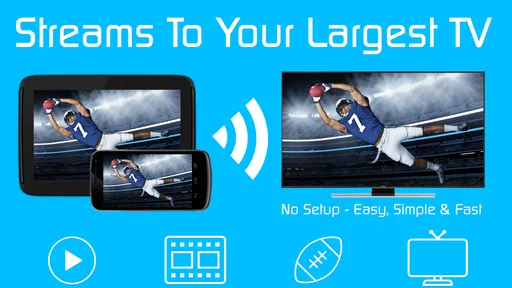
When it comes to streaming your favorite shows and videos from your phone to your TV, TV Cast | Ultimate Edition is a game-changer you’ll want in your app arsenal. I’ve been fiddling around with it for a bit, and let me tell you, it’s like having a remote control that actually listens to you. No more squinting at your smartphone screen when you can enjoy everything on the big screen. Let’s dive into what makes this app tick and why you might want to give it a whirl.
Where streaming can get stuck
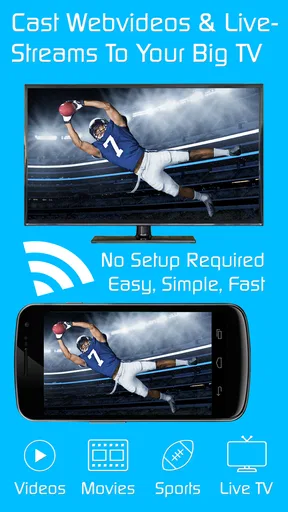
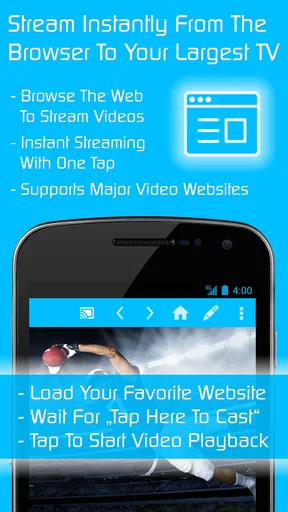
The main appeal here is straightforward: use a phone as the starting point for viewing web video on a larger screen. That can be handy when a clip is easier to find in a mobile browser than through a TV’s own menus. But “streaming” does not mean every page will behave identically. A webpage may contain several video elements, use a player that does not expose its stream in a compatible way, or change how playback starts. If a particular video does not cast, I would treat that as a possible limitation of that page or player before assuming the whole app is broken.
That distinction matters when deciding whether this is the right tool. I’d reach for TV Cast when I want to browse for a web video on my phone and send it to a supported TV or streaming device. For a subscription service with a polished TV app, I’d usually open that service directly on the television instead. Its own app is generally the simpler route for account-based viewing, and it avoids relying on a webpage’s playback behavior.
Seamless Streaming Experience
Right off the bat, I was impressed by how TV Cast | Ultimate Edition makes the whole streaming process feel seamless. You simply connect your device to the same Wi-Fi as your TV, and voilà, instant connection. It’s like having your own personal cinema. The app supports a wide range of formats, so whether you’re watching a video you’ve downloaded or streaming directly from the web, it handles it like a champ.
Setup checks that save time
Before troubleshooting anything complicated, I’d check the basics: the phone and the receiving device should be on the same Wi-Fi network, the TV or streamer should be awake and ready to receive a cast, and the network should be working normally. A guest network or separate Wi-Fi bands can sometimes prevent devices from seeing one another, even when both have internet access. If the TV does not appear, checking the network connection on both ends is more useful than repeatedly tapping the cast control.
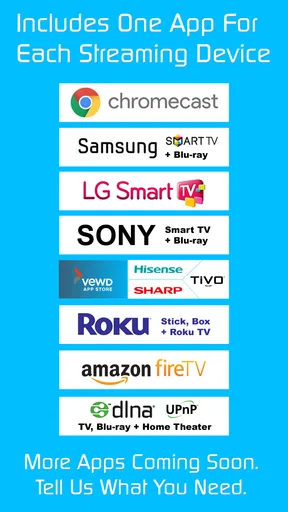
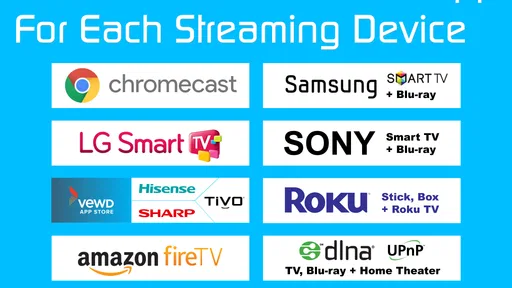
It’s also worth confirming that the device you intend to use is among the app’s supported options. TV Cast is designed for a broad mix, including Chromecast, Roku, Fire TV, DLNA devices, and smart TVs from manufacturers such as Samsung, LG, and Sony, but support for a family of devices does not guarantee that every model or setup behaves the same way. If you have more than one receiver at home, choose the one you actually want before starting playback; that avoids confusing a discovery issue with a video issue.
User-Friendly Interface
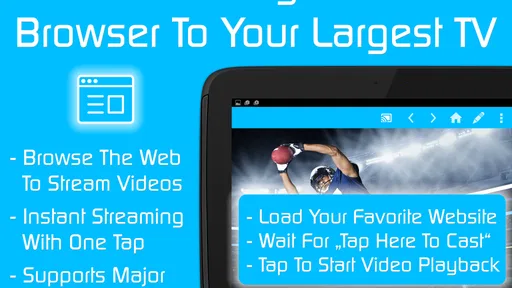
One of the highlights for me was the app’s intuitive design. You know how some apps require a Ph.D. in rocket science just to navigate? Not this one. The interface is clean, straightforward, and doesn’t clutter your screen with unnecessary options. It’s all about getting you to your content as quickly as possible. The navigation bar is simple to use, and you can easily access your favorite streaming sites with just a few taps.
A practical workflow when playback fails
If a video does not start on the television, I would work through the problem one step at a time rather than restarting everything at once. First, check whether the page plays normally on the phone. Then try a different video from the same site. If that works, the original clip or its embedded player is a more likely source of trouble than the connection. If nothing from the page works, try another familiar web video; that helps separate a site-specific problem from a broader casting problem.
When the receiver is visible but playback stalls, I’d stop the attempt, reopen the video page, and reconnect to the intended device. If the problem continues, restarting the app and checking the home network are sensible next steps. Avoid changing several settings at once: otherwise, it becomes hard to tell which change helped. For an occasional clip, this small amount of diagnosis is manageable. For a live event where missing the start would be frustrating, I’d test the exact site and device beforehand or choose a native TV app when available.
Compatibility and Versatility
Another feature that caught my eye is how versatile this little app is. It’s compatible with a plethora of devices, from Roku to Chromecast, Fire TV, and even some smart TVs. So, no matter what device you’re rocking, TV Cast has got you covered. I tested it on a couple of different systems, and the performance was consistently smooth across the board.
What the app can—and cannot—control
It helps to think of the phone and television as two parts of the viewing process, not as identical screens. The phone is useful for finding a page and choosing a video; the receiver handles the larger display. That arrangement is convenient, but it can make a failure feel ambiguous: the page may load on the phone while its video does not transfer cleanly to the TV. In that case, trying another clip or another page is a practical test, not a guarantee that every web player will work.
Network quality also affects the experience independently of the app. If other devices are using the connection heavily, or the receiver has a weak connection, playback may pause or look less steady. Moving closer to the router or reducing other network activity can be a reasonable check. If other streaming apps on the same TV are also struggling, I would investigate the TV’s connection or the home network before blaming TV Cast alone.
Customizable Features
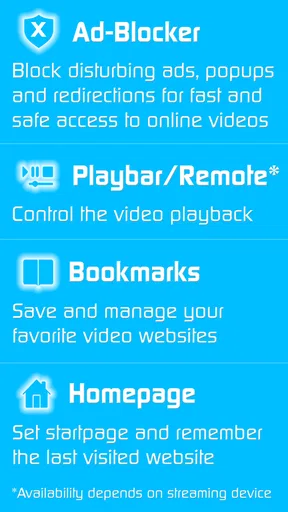
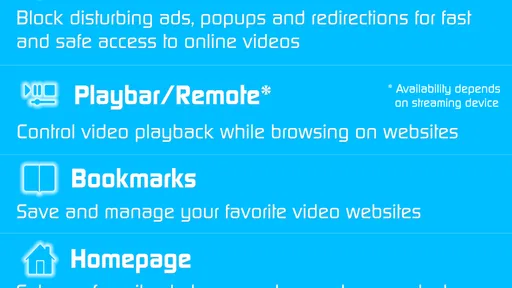
For those of you who love to tweak settings to match your preferences, you’re in luck. The app offers a range of customizable options. Want to adjust the video quality or subtitle settings? Easy peasy. Want to bookmark your favorite sites for quicker access? Done. It’s these little extras that make the app feel like it was designed just for you.
Small habits that make repeat viewing easier
For a site you use often, bookmarking it can save the repeated work of finding the same page each time. I’d keep those shortcuts focused on pages that reliably expose the video you want, rather than treating every page as a dependable casting source. That makes the app more useful as a bridge between browsing and TV viewing, while keeping expectations realistic when a website changes its player.
Subtitles and video quality are worth checking before settling in, especially if you are watching from across a room or sharing the screen with someone who needs captions. A quick test on a short clip can show whether the current settings are comfortable before you start a longer video. This is a better use of customization than changing options mid-viewing and then trying to remember which one affected playback.
Performance and Reliability
During my time with the app, I didn’t encounter any major hiccups. The streaming quality was top-notch, with no noticeable lag or buffering. It’s like the app runs on caffeine – always ready to go. Even when I switched between different content types, the transition was buttery smooth. This reliability is a big win in my book, especially when you’re eager to catch the latest episode of your favorite series.
How it fits alongside other ways to watch
Compared with using a TV’s built-in browser, casting from a phone can be easier when you would rather search and navigate with a familiar touchscreen. Compared with a service’s dedicated TV app, though, it may involve more steps and depends more on the webpage being compatible. Screen mirroring is another possible alternative, but that mirrors the phone’s display rather than using this app’s web-video casting workflow. Which option makes sense depends on what you are watching: a quick public web clip is a natural fit for casting, while regular viewing in a major streaming service is usually more convenient through its native app.
A realistic use is a family member finding a recipe video or travel clip on a phone, then sending it to the living-room TV so everyone can watch together. The phone stays useful for locating the next clip, but the TV makes shared viewing more comfortable. I would not choose this setup for every household task, though. If you want a single remote, a large library, or a consistent experience for paid services, the TV’s own apps and remote are likely the better everyday setup.
Who should consider it
The app makes the most sense for someone who often finds videos on the web and wants a practical way to move them from a phone to a compatible screen. It may also suit a household with different kinds of receivers, since it is aimed at more than one streaming ecosystem. On the other hand, if you mainly watch content through apps already installed on your TV, or you expect every embedded player to cast without any troubleshooting, you may not get enough value from adding another step to your routine.
TV Cast | Ultimate Edition is a paid app at $9.99, so I would weigh that cost against how often you actually cast web videos. The app is made by 2kit consulting, has an average rating of 4.0 from around 2.9K ratings, and has been installed over 100K times. It is rated for Everyone, was released on November 15, 2016, and its current version is 1.6, with a minimum OS requirement of 4.4W. Those details make it worth checking that your device meets the requirement before buying; the more important personal question is whether web-to-TV casting fills a gap your existing TV apps do not.
Why You Should Give It a Shot
In a world where countless apps promise to enhance your streaming experience, TV Cast | Ultimate Edition stands out by delivering on its promises. Whether you’re a tech-savvy streamer or someone just looking to ditch the small screen for a bit, this app is worth considering. It’s that trusty sidekick you never knew you needed, always ready to turn movie nights into an epic viewing experience.
If you’re curious to see how it works for yourself, you can snag it on your preferred app store and start exploring its features. Who knows? Maybe it’ll become your go-to app for all things streaming. Happy watching!
Verdict
Strengths of TV Cast | Ultimate Edition
- Supports multiple streaming devices.
- High-quality video casting.
- User-friendly interface design.
- Works with various video formats.
- No ads interrupting playback.
Limitations of TV Cast | Ultimate Edition
- Requires a stable Wi-Fi connection.
- Limited free features.
- Initial setup can be tricky.
- Subscription needed for full access.
- Occasional connectivity issues.
Other Releases by 2kit consulting
View All
TV Cast Pro for Fire TV
Video Players & Editors4.1

Screen Mirroring + for Fire TV
Tools4.4

Screen Mirroring Pro for Roku
Tools4.5

TV Cast Pro for LG webOS
Video Players & Editors4.2
Similar Picks in This Category
View All
Google TV
Google LLC3.9

iTunes
Apple4.7

YouTube
Google LLC3.8

MX Player
Amazon Mobile LLC4.2

CapCut - Video Editor
Bytedance Pte. Ltd.3.5

PLAYit-All in One Video Player
PLAYIT TECHNOLOGY PTE. LTD.4.5
Frequently Asked Questions
What is TV Cast | Ultimate Edition and how does it work?
TV Cast | Ultimate Edition is an app that allows you to stream videos, photos, and music from your mobile device to your TV. It works by connecting your phone or tablet to your TV via Wi-Fi, using popular streaming devices such as Chromecast, Roku, Amazon Fire TV, or Smart TVs. You simply select the media you want to cast and enjoy it on a larger screen.
Which devices are compatible with TV Cast | Ultimate Edition?
TV Cast | Ultimate Edition is compatible with a wide range of devices, including Android and iOS smartphones and tablets. It supports casting to various streaming devices such as Chromecast, Amazon Fire TV, Roku, and most Smart TVs. Ensure that both your casting device and receiving device are connected to the same Wi-Fi network for optimal performance.
Are there any subscription fees or in-app purchases?
TV Cast | Ultimate Edition may require a one-time purchase or subscription, depending on the platform. While some basic features might be free, unlocking the full potential of the app often involves in-app purchases. These premium features could include ad-free streaming, enhanced video quality, and additional casting options.
How is the video quality when using TV Cast | Ultimate Edition?
The video quality when using TV Cast | Ultimate Edition largely depends on your internet connection and the capabilities of your streaming device. Generally, the app supports high-definition video streaming, ensuring a clear and smooth viewing experience. For the best results, ensure a stable and high-speed internet connection.
What should I do if I encounter issues while using the app?
If you encounter issues while using TV Cast | Ultimate Edition, first ensure that your app and streaming device are up-to-date. Verify that both devices are on the same Wi-Fi network. Restart your router and devices if necessary. If problems persist, consult the app's support section or contact customer service for further assistance.
